
 Moodle Tip of the Week
Using Different Views in the Gradebook
? Question: How do I see just the grades of one assignment on one page, instead of having to scroll really far over to find the assignment in the Gradebook?
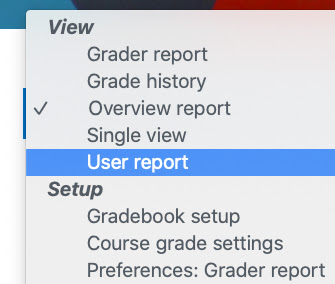
√ Answer: In the gradebook, you can actually select multiple views to help you narrow your scope in on either one assignment or even one student! In the gradebook, click on the drop-down menu in the upper right of your screen (where it says "Grader Report"), then choose one of the other views. Single View allows you to choose a specific grade column and view only students' grades for that specific assignment, while User Report allows you to choose a specific student and view their grades for the course as they see them. Experiment with the other views to see if they meet some of your needs!
Use this link for a Faculty Tutorial on Overriding Grades (Single View).
Use this link for a Faculty Tutorial on viewing the gradebook as a student (user report).
Use this link for a Faculty Tutorial on viewing the gradebook as a student (user report).
Questions? Submit a help desk ticket here.